Integrating Procreate Star Brush Stamps into Your Digital Illustration Workflow
In the fast-paced world of digital illustration, efficiency is often just as critical as artistic talent. Whether you are a freelance designer meeting tight deadlines, an educator creating engaging visual materials, or a hobbyist looking to streamline your creative process, the tools you choose define your output quality and speed. This is where specialized assets like Procreate Star Brush Stamps become invaluable. Rather than serving as mere decorative elements, these brushes function as strategic components in a broader design workflow, allowing creators to maintain consistency while significantly reducing manual drawing time.
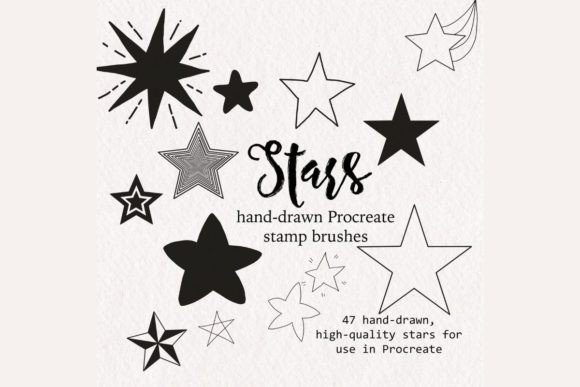
This collection features 47 high-quality, hand-drawn star stamps and watercolor brushes designed specifically for the Procreate ecosystem. By understanding how to integrate these assets into your existing pipeline, you can enhance productivity without sacrificing the organic, hand-crafted aesthetic that audiences appreciate. The following guide explores practical implementation strategies, compatibility considerations, and workflow optimizations to help you get the most out of this digital toolset.
Understanding the Asset Structure and Compatibility
Before diving into creation, it is essential to understand the technical foundation of the asset. This product is a digital download, meaning no physical items will be mailed. You receive a .brushset file containing 47 distinct brushes, along with a .pdf guide for installation and modification instructions. Crucially, you must have the Procreate app installed on an iPad to utilize these tools. They are not compatible with Photoshop, Procreate Pocket, or desktop-based illustration software unless used within a specific emulation environment that supports Procreate files, which is generally not recommended for professional workflows.
The collection is diverse, catering to various stylistic needs. It includes:
- Hand-drawn stars: Organic shapes that add a personal, sketch-like touch.
- Doodle stars: Playful, informal designs suitable for casual or youthful themes.
- Solid stars and outlines: Clean, geometric options for structured layouts.
- Star galaxies: Complex, textured stamps for background depth.
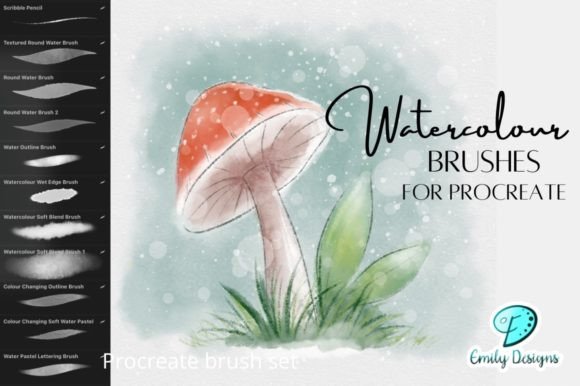
- Watercolor star brushes: Seven specialized brushes that mimic wet-media bleeding and texture.
Recognizing this variety allows you to plan your project phases more effectively. For instance, you might use solid stars for initial layout blocking and switch to watercolor stars for final rendering, ensuring a cohesive yet dynamic visual hierarchy.
Pre-Production: Planning and Organization
Effective use of any digital asset begins with preparation. When incorporating Procreate Star Brush Stamps into a new project, start by defining the visual tone. Are you aiming for a whimsical, hand-drawn look, or a more polished, graphic design aesthetic? This decision dictates which subset of the 47 brushes you will prioritize.
Organization is key to maintaining workflow momentum. Upon installation, consider creating custom brush groups within Procreate. Instead of scrolling through the entire set every time you need a specific shape, group the "Watercolor" brushes separately from the "Solid" or "Doodle" variants. This small upfront investment in organization pays dividends during the execution phase, reducing context-switching and keeping your focus on the creative task at hand.
Additionally, review the included .pdf instructions. While Procreate’s interface is intuitive, understanding how to adjust brush properties—such as spacing, jitter, and size limits—can unlock greater flexibility. Familiarize yourself with these settings before starting a client project to avoid troubleshooting mid-flow.
Execution: Integrating Stamps into the Creative Process
During the illustration phase, these stamps serve multiple functions depending on your role. For marketers and social media managers, speed is paramount. Using pre-made star stamps allows for rapid composition of promotional graphics, story highlights, or blog headers. Instead of drawing each element from scratch, you can place, resize, and recolor stamps to fit your layout instantly.
For educators and publishers, consistency is crucial. When creating worksheets, presentation slides, or book illustrations, using the same set of star brushes ensures a unified visual language throughout the material. This consistency reinforces brand identity or educational clarity, making the content easier for the audience to process.
Modification and Customization Techniques
One of the strongest advantages of this set is its modifiability. The stamps are not static images; they are dynamic brushes that respond to pressure and tilt (where applicable). However, their true power lies in post-placement editing. Once a stamp is applied to your canvas, it becomes a pixel layer that you can manipulate extensively.
You can easily modify the size to create depth perception, placing larger stars in the foreground and smaller ones in the background. The position can be adjusted using the transform tool to achieve perfect alignment or intentional asymmetry. Most importantly, the color can be changed using Procreate’s hue, saturation, and brightness sliders or by applying clipping masks. This allows you to adapt the same set of 47 brushes to fit any color palette, whether it’s a pastel nursery theme or a bold, high-contrast corporate design.
For advanced users, combining these stamps with layer blending modes can create sophisticated effects. Try setting a watercolor star layer to "Multiply" to let underlying textures show through, or use "Add" for glowing, celestial effects. This level of control ensures that the brushes do not look like generic clip art but rather like integral parts of your original artwork.
Post-Production and Quality Control
After the main illustration is complete, the review phase involves checking for visual balance and repetition. Because you are using a finite set of 47 stamps, there is a risk of pattern fatigue if the same few stars are used repeatedly in visible areas. To mitigate this, rotate your usage across the entire collection. Keep track of which stamps you have used frequently and intentionally select underutilized ones for secondary elements.
Quality control also involves checking resolution. Since these are high-quality brushes, they scale well, but excessive enlargement beyond their intended size may reveal pixelation or loss of detail. Always test your largest intended star size on a separate layer before committing to the final canvas. If necessary, redraw the element at a larger scale or use vector-based alternatives for extremely large prints, though for most digital and standard print applications, these brushes perform exceptionally well.
Long-Term Workflow Integration
Integrating Procreate Star Brush Stamps is not a one-time event but a long-term strategy for enhancing your digital toolkit. Over time, you will develop a personal library of favorite combinations and settings. Save these as favorites or custom presets within Procreate to further accelerate future projects.
Furthermore, consider how these assets interact with other tools in your ecosystem. If you move files between Procreate and Photoshop for final editing, ensure your layers are organized and labeled clearly. The non-destructive nature of keeping stamp layers separate from background layers allows for easy adjustments even after the project has been handed off or archived.
For entrepreneurs and small business owners, this efficiency translates directly to ROI. Time saved on repetitive drawing tasks can be redirected toward client communication, marketing, or developing new products. The ability to produce high-quality, consistent visuals quickly gives you a competitive edge in content-heavy industries.
Final Thoughts on Practical Implementation
The value of this brush set lies not just in the aesthetic appeal of the stars, but in how they streamline the creative process. By offering a mix of styles—from doodle to watercolor—it accommodates a wide range of projects without requiring multiple purchases. The ease of installation and the clarity of the provided instructions lower the barrier to entry, making it accessible for beginners while still offering enough depth for professionals.
Remember that tools are only as effective as the workflow they support. Take the time to organize your brushes, experiment with modification techniques, and integrate these stamps thoughtfully into your design hierarchy. When used correctly, Procreate Star Brush Stamps become more than just decorative elements; they become essential components of a efficient, professional, and scalable creative workflow.