Unlocking Creative Potential with the Procreate Brush Stamp 3D Alphabet Pack
In the rapidly evolving world of digital art and design, efficiency is just as important as creativity. For artists, planners, and hobbyists using the iPad, Procreate has become the industry standard for illustration. However, creating consistent, professional-looking typography from scratch can be time-consuming. This is where specialized tools like the Procreate Brush Stamp - 3D Alphabet come into play. This comprehensive brush set transforms the way users approach lettering, offering a swift and stylish solution for adding depth and dimension to digital projects.
Whether you are designing a custom planner, crafting a visually appealing to-do list, or creating printable notes, understanding how to leverage these stamp brushes can significantly enhance your workflow. This article explores the features, benefits, and practical applications of the 88-brush 3D Alphabet pack, helping you decide if it is the right tool for your creative arsenal.
What Is a Procreate Brush Stamp?
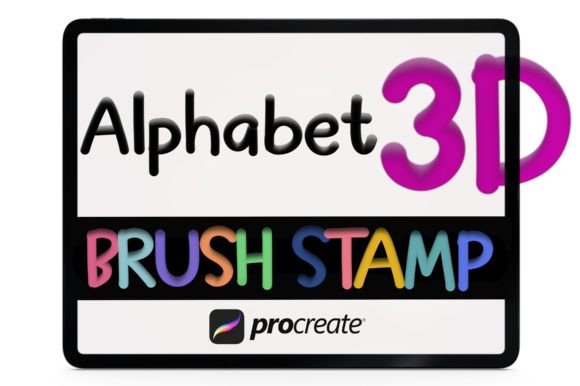
Before diving into the specific features of the 3D Alphabet pack, it is essential to understand what a "stamp brush" is within the Procreate ecosystem. Unlike traditional brushes that simulate paint, pencil, or ink strokes, a stamp brush acts more like a digital sticker or a pre-made asset. When you tap the screen with a stamp brush, it places a complete image—in this case, a 3D-rendered letter, number, or symbol—onto your canvas.
This distinction is crucial for beginners who might expect to "draw" the letters. Instead, you are placing them. This method ensures uniformity in style and perspective, which is particularly difficult to achieve when hand-lettering 3D effects manually. The Procreate Brush Stamp - 3D Alphabet allows users to bypass the complex shading and perspective calculations required for 3D typography, delivering instant results with a single tap.
Breakdown of the 88-Brush Collection
The value of this specific brush set lies in its comprehensiveness. You receive a total of 88 brushes, meticulously organized to cover almost every textual need for standard projects. Here is what is included in the pack:
- Uppercase Alphabet (A-Z): Twenty-six distinct brushes for bold, prominent headings and titles.
- Lowercase Alphabet (a-z): Twenty-six brushes for body text, subtitles, or a softer aesthetic.
- Numbers (0-9): Ten brushes essential for dates, pricing, lists, and data visualization.
- Symbols: A variety of punctuation marks and special characters to complete sentences and add flair.
This extensive library means you rarely need to switch tools mid-project. Whether you are writing out "January 2024" for a planner header or creating a quirky "To-Do" list with bullet points, the assets are readily available within the app.
Practical Applications in Daily Creativity
The versatility of the 3D Alphabet stamps extends far beyond simple digital drawings. Their primary strength lies in their ability to elevate everyday organizational tools and commercial designs. Below are some common use cases where these brushes shine.
Digital Planning and Journaling
Digital planning has surged in popularity, with thousands of users organizing their lives on iPads. A plain text entry can often look mundane. By using the 3D Alphabet stamps, planners can create eye-catching headers for weekly spreads, monthly calendars, and habit trackers. The three-dimensional effect adds a layer of sophistication that makes the digital page feel more tangible and engaging.
Printable Projects and Stationery
For those who bridge the gap between digital and physical, these brushes are invaluable. You can design note templates, greeting cards, or educational worksheets in Procreate and then export them for printing. The high resolution of Procreate brushes ensures that when printed, the 3D letters remain crisp and clear. This is particularly useful for small business owners who sell printable planners or stationery on platforms like Etsy.
Social Media Graphics
Content creators often need quick, attractive text overlays for Instagram stories, Pinterest pins, or YouTube thumbnails. Hand-lettering 3D text for every post is unsustainable. With this brush set, a creator can type out a quote or a title in seconds, adjust the color, and move on to the next task. This speed is vital for maintaining a consistent posting schedule without sacrificing visual quality.
Technical Requirements and Compatibility
One of the most critical aspects of purchasing digital assets is ensuring compatibility. This brush set is designed exclusively for the iOS App Procreate. To use these brushes effectively, your device must meet the following criteria:
- Software Version: You must have Procreate Version 5.0 or higher installed. Older versions may not support the specific file structure or rendering capabilities of these stamp brushes.
- Operating System: These brushes are built for iOS (iPadOS). They are optimized for the touch interface and pressure sensitivity (though less relevant for stamps) of the iPad.
- File Format: You will receive .brushset files. This is the native format for Procreate brush libraries, allowing you to import all 88 brushes at once rather than individually.
Important Note: These brushes do not work in Adobe Photoshop, Clip Studio Paint, or any other desktop or mobile illustration software. Attempting to import .brushset files into other applications will result in errors. This limitation is due to the proprietary nature of Procreate’s brush engine. If you are a multi-platform user, ensure you are working within the Procreate environment when utilizing these assets.
Common Misunderstandings About Stamp Brushes
New users often have questions about the flexibility of stamp brushes. Let’s clarify a few common assumptions:
Misconception 1: "I can't change the color."
This is false. One of the powerful features of Procreate stamp brushes is that they respect the currently selected color in your palette. If you select a bright red, the 3D letter will stamp in red. If you select a pastel blue, it will stamp in blue. This allows for endless customization without needing separate brushes for every color variant.
Misconception 2: "They are static and can't be edited."
While the shape of the letter is fixed, you can still manipulate it after stamping. Using Procreate’s Transform tool, you can resize, rotate, skew, or distort the 3D letters to fit your composition. You can also apply layer effects, such as shadows, glows, or blending modes, to integrate the text seamlessly into your artwork.
Misconception 3: "It’s cheating."
Using tools to enhance efficiency is not cheating; it is smart design. Professional designers use assets, fonts, and templates daily. The goal is to communicate ideas effectively. If a stamp brush helps you convey your message with better aesthetics and less fatigue, it is a valid and valuable tool.
How to Get Started
Integrating the Procreate Brush Stamp - 3D Alphabet into your workflow is straightforward. Once you have purchased and downloaded the .brushset file, follow these steps:
- Open Procreate on your iPad.
- Tap on the Brush Library icon.
- Select "Import" from the top left menu.
- Navigate to your downloaded file and select it.
- The entire set of 88 brushes will appear in your library, ready to use.
From there, experiment with different colors and sizes. Try combining uppercase and lowercase letters for dynamic contrast. Use the numbers to create vintage-style price tags or modern minimalist dates. The more you experiment, the more you will discover the potential of this versatile tool.
Conclusion
The Procreate Brush Stamp - 3D Alphabet is more than just a collection of letters; it is a productivity booster for digital creatives. By providing 88 high-quality, 3D-styled characters, it removes the barrier of technical lettering skills, allowing users to focus on layout, color, and composition. Whether you are a student organizing notes, a professional designer creating client deliverables, or a hobbyist making digital journals, this brush set offers a perfect blend of style and convenience.
Remember, the key to mastering any digital tool is practice. Download the set, explore its features, and start transforming your flat designs into vibrant, three-dimensional creations today. For more tips on Procreate techniques, consider exploring official tutorials or community forums where artists share their latest workflows and inspirations.